About this template
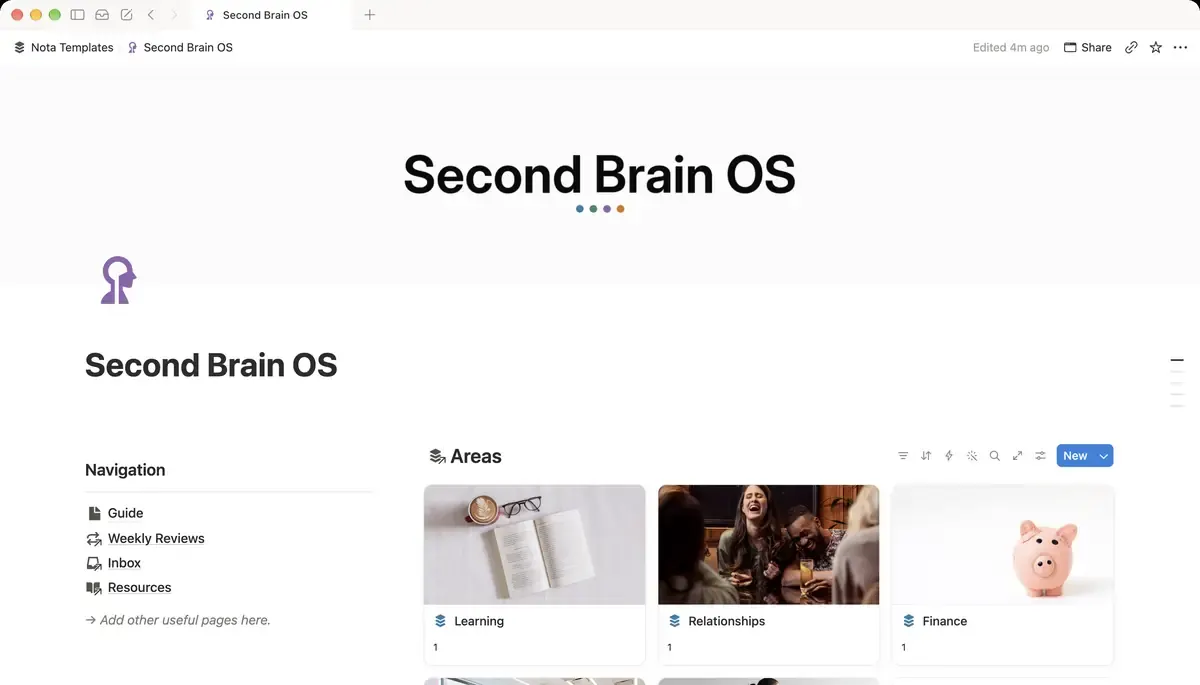
Second Brain OS is a complete personal knowledge system built on the PARA method. Capture anything in seconds, organize it automatically with relations and rollups, and never lose an idea again.
What's inside
- 6 linked databases, PARA method
- Progress bars fed by your tasks
- Today view, sorted by priority
- Inbox with an Unprocessed filter
- Areas and projects as photo galleries
- Guide page and setup checklist
How it works
- 1Complete checkout and open the link in your email.
- 2Click “Duplicate” in the top-right corner of the Notion page.
- 3The template is now in your workspace. Make it yours.
Who it's for
Second Brain OS is for people who already take notes but cannot find them again. If your ideas are scattered across three apps, a notes folder and your own memory, the problem is not discipline — it is that nothing connects. PARA gives every note a home: Projects for what you are actively working on, Areas for the parts of life you maintain, Resources for things worth keeping, and an Inbox for everything you have not sorted yet.
Your first week
- 1Open the Inbox and dump everything on your mind. Do not organise it — that is the point of an inbox.
- 2Create your Areas first: the five or six parts of life you are responsible for. Health, Career, Finance, whatever yours are.
- 3Add the projects you are actually working on this month and link each one to an Area. The progress bars start filling as you tick tasks.
- 4Use the Today view each morning. It shows only what is due, sorted by priority, so you are not re-reading the whole system.
What it doesn't do
This is not a team tool. There are no assignees, approvals or shared workloads — it assumes one person and one brain. It also will not think for you: the Inbox only stays useful if you empty it, which is what the Weekly Reviews database is there to prompt.
Questions
What is the PARA method?+
A way of sorting information by how actionable it is rather than by subject: Projects, Areas, Resources, Archive. Tiago Forte named it. The point is that you decide where something goes by asking when you will need it, not what topic it belongs to.
Can I use this with my existing notes?+
Yes. Paste them into the Inbox and sort them into Areas as you go. There is no import step — Notion pages can be dragged in directly.
How is this different from a plain task list?+
Tasks here belong to projects, and projects belong to areas of your life. That is what makes the progress bars and the Today view possible: the system knows which task belongs to what, so it can roll numbers up for you.